
Apple Pay is Apple’s proprietary mobile payment and digital wallet service that allows users to make secure, contactless transactions using an iPhone, Apple Watch, iPad, Mac, or Apple Vision Pro. Introduced as a modern replacement for physical credit and debit cards, Apple Pay digitizes card details inside the built-in Apple Wallet app, enabling purchases in physical stores, within third-party apps, and across the web.
How Apple Pay Works: Under the Hood
Apple Pay relies on a combination of hardware and software security architectures to process payments without ever exposing your actual banking details:
- Near Field Communication (NFC): For in-store checkout, Apple devices broadcast an encrypted, short-range wireless signal to point-of-sale (POS) terminals displaying the contactless or Apple Pay symbol.
- Device Account Number (Tokenization): When you add a debit or credit card to Apple Wallet, Apple does not store the original 16-digit card number on the device or on Apple servers. Instead, your bank generates a unique token called a Device Account Number (DAN), which is stored securely in an isolated hardware chip called the Secure Element.
- Dynamic Security Codes: Every time you authorize a payment, the Secure Element creates a one-time dynamic security code. Because this code changes with each transaction, a merchant never sees or records your actual card details, drastically reducing the risk of fraud from card skimmers or merchant database breaches.
- Biometric Authorization: Every payment must be confirmed using Face ID, Touch ID, Optic ID, or a passcode. Even if someone picks up your unlocked phone, they cannot execute a transaction without biometric verification.
Where Can You Use Apple Pay?
- In Retail Stores & Transit: Anywhere you see the contactless payment symbol or the Apple Pay mark at checkout registers, transit turnstiles, taxis, and vending machines.
- Within Apps: Fast one-tap checkout in retail, food delivery, and travel apps without having to manually key in billing and shipping addresses.
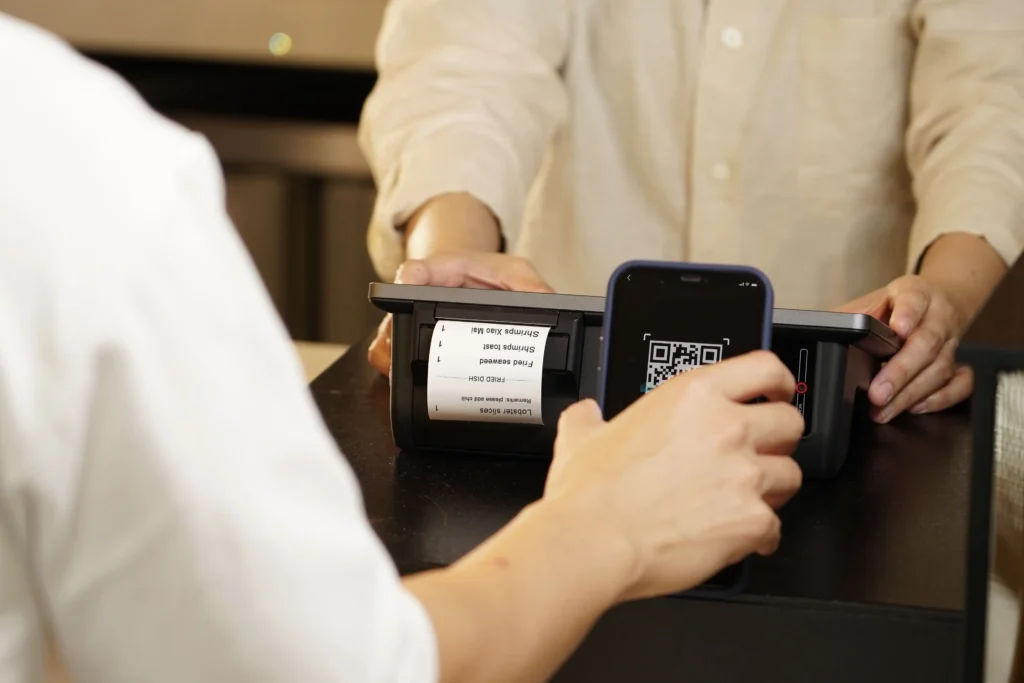
- On the Web: Seamless payments in Safari and compatible third-party browsers (where desktop users can scan an on-screen QR code using their iPhone or iPad to complete authentication).
- Peer-to-Peer Payments: In supported regions (such as the United States), users can send and receive funds directly through Messages using Apple Cash.
Apple Pay vs. Apple Wallet: Understanding the Difference
Many users treat these terms interchangeably, but they serve distinct roles:
| Feature | Apple Wallet | Apple Pay |
| What it is | The digital container / app preinstalled on iOS and watchOS | The payment technology and service protocol |
| Primary function | Stores payment cards, boarding passes, event tickets, IDs, and keys | Encrypts, tokenizes, and routes payments securely to banks |
| Internet / NFC needed? | No, passes can be viewed offline | Requires NFC readers for stores or an internet connection for apps/web |
| Supported items | Driver’s licenses, hotel keys, loyalty cards, boarding passes, credit/debit cards | Credit cards, debit cards, prepaid cards, and Apple Cash |
How to Set Up Apple Pay on iPhone
Setting up Apple Pay takes under two minutes. Before beginning, make sure you have an active Apple Account and a passcode or Face ID/Touch ID enabled.
1.Open the Wallet App:
Locate and open the Wallet app on your iPhone, or navigate to Settings > Wallet & Apple Pay. Tap the Add (+) button in the upper-right corner.
2.Select Card Type and Scan:
Choose Debit or Credit Card, tap Continue, and place your physical card within the camera frame to automatically capture the details, or select Enter Card Details Manually.
3.Verify with Your Bank:Prerequisite: SMS OTP or bank app confirmation.
Enter your card’s expiration date and 3-digit CVV/security code. Your issuing bank will verify eligibility and send a one-time verification code via SMS, email, or a push prompt in your mobile banking app.
4.Complete Setup & Choose Default Card:
Once authenticated, your card is ready. If you add multiple cards, drag your preferred card to the front of the stack in Wallet to set it as your default payment method.
How to Pay in Stores
- With Face ID (iPhone X and later): Double-click the side button, glance at your screen to authenticate, and hold the top of your iPhone within a few centimeters of the contactless reader until a checkmark and “Done” appear.
- With Touch ID (iPhone SE and earlier): Rest your registered finger on the Touch ID sensor and hold your phone near the reader.
- With Apple Watch: Double-click the flat side button next to the Digital Crown and hold the display of your watch face-down near the contactless terminal until you feel a haptic tap.
Is Apple Pay Safe?
Apple Pay is significantly more secure than carrying and swiping a physical card:
- Zero Card Skimming: Traditional card skimmers attached to ATMs and fuel pumps capture magnetic stripe data. Apple Pay does not use magnetic stripes, rendering hardware skimmers useless.
- Apple Doesn’t Track Purchases: Apple does not retain transaction information that can be tied back to you, and transaction histories remain private on your device.
- Remote Deactivation via Find My: If your iPhone or Apple Watch is lost or stolen, you can remotely place the device in Lost Mode or erase it via iCloud.com/find. This immediately suspends all payment tokens without requiring you to cancel or reissue your physical plastic cards.