
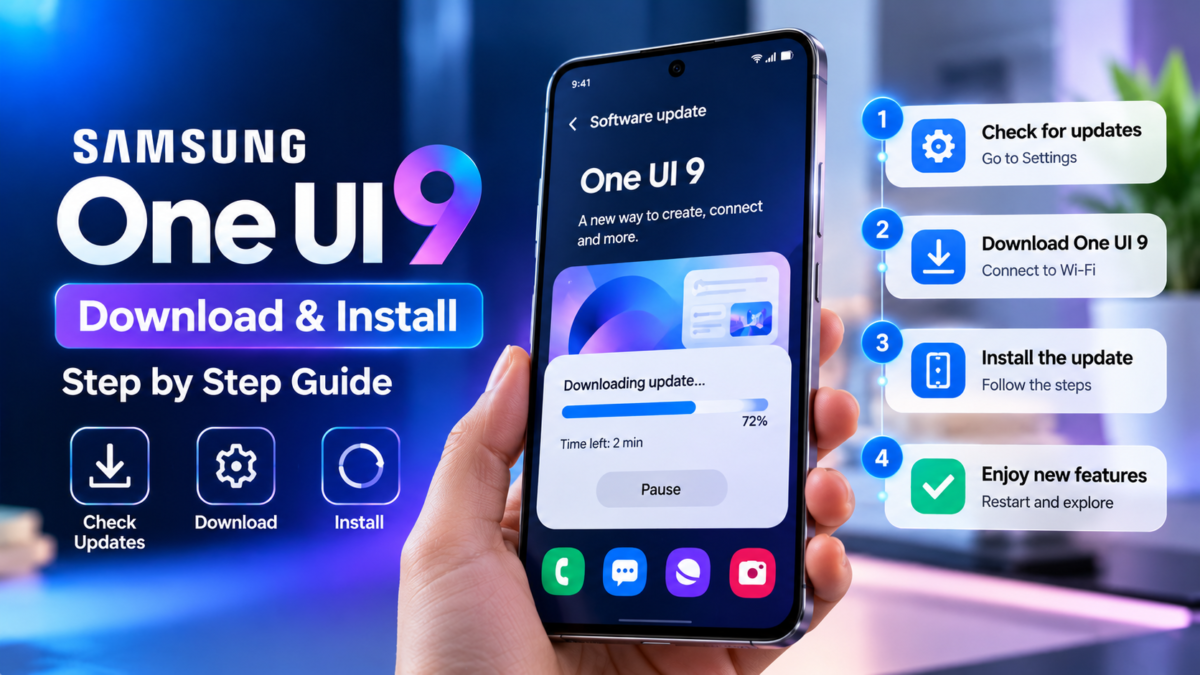
Samsung One UI 9 brings new features and improvements to compatible Galaxy smartphones and tablets. If your device is eligible and the update has been released for your region, you can usually download it directly through the phone’s Settings menu.
Before starting, remember that an announcement does not mean every Galaxy device can download the update immediately. Your model, region and carrier can affect availability.
This guide explains how to check for One UI 9, prepare your phone and resolve common update problems.
Step 1: Check Your Samsung Phone Model
First, identify your exact Galaxy model.
- Open Settings.
- Select About phone.
- Note the device name and model number.
Check Samsung’s official One UI 9 announcements to determine whether your model is included in the rollout.
For more information, read our Samsung One UI 9 eligible devices guide.
Step 2: Back Up Important Data
A major software update should be treated carefully. Although updates are designed to preserve your information, backing up important files is a sensible precaution.
Back up photographs, videos, documents, contacts and other important data. Samsung Smart Switch and Samsung Cloud may offer suitable options depending on your device and region.
Check that the backup has completed before continuing.
Step 3: Prepare Your Phone
Before downloading the update:
- Connect to a reliable Wi-Fi network.
- Charge your phone sufficiently.
- Ensure adequate free storage.
- Close unnecessary applications.
- Read any available release notes.
Do not interrupt the phone while it is installing the software.
Step 4: Download One UI 9
Follow these steps:
- Open Settings.
- Tap Software update.
- Select Download and install.
- Allow the phone to check for updates.
- If One UI 9 is offered, review the update information.
- Tap the download or installation option shown on your device.
- Follow the on-screen instructions and restart if requested.
The exact wording of buttons may vary by device and software version.
Step 5: Wait for Installation to Finish
Your phone may restart several times or display an installation screen. Allow the process to finish without forcing a restart or removing the battery, if applicable.
After installation, check the Software information section under About phone to verify the installed One UI version.
What If One UI 9 Is Not Available?
The Update Has Not Reached Your Phone
Samsung releases major updates progressively. Wait for the rollout to reach your device and check again later.
Your Phone Is Not Eligible
Compare your exact model with Samsung’s official announcements and support information.
There Is Not Enough Storage
Remove unnecessary downloads or transfer large files to another storage location. Keep important data backed up before deleting anything.
Your Internet Connection Is Unstable
Try a reliable Wi-Fi network and repeat the update check.
The Download Fails
Restart your phone if it is safe to do so, check the connection and available storage, and try again. If the problem persists, consult Samsung Support.
Can You Install One UI 9 Manually?
Samsung’s official over-the-air update method is the preferred option for most users.
Advanced firmware installation methods may involve risks, including data loss, incompatible software and device malfunction. Never flash firmware intended for another model or region, and avoid unofficial files claiming to provide early access to a stable release.
If the update is unavailable, waiting for the official rollout is usually the safer choice.
What Should You Check After Updating?
Once installation is complete:
- Verify the installed software version.
- Check whether your frequently used applications work correctly.
- Review important privacy and permission settings.
- Test Wi-Fi, mobile data, calls and Bluetooth.
- Explore the new features supported by your device.
Some AI features may require additional downloads, a Samsung account, permissions or an internet connection.
Frequently Asked Questions
Is One UI 9 a free update?
Samsung generally provides eligible system updates without a separate software purchase. However, certain enhanced AI services or third-party services may have separate terms or fees.
How long does the update take?
The time depends on the download size, internet speed, device performance and installation process. There is no single duration that applies to every phone.
Will updating erase my data?
A normal official update is designed to preserve user data, but problems can occur. Always back up important information beforehand.
Can I downgrade after installing One UI 9?
Downgrading is not always supported and may require a procedure that erases data. Check Samsung’s official guidance before attempting it.
Conclusion
The easiest way to install Samsung One UI 9 is through Settings > Software update > Download and install. Confirm your phone’s eligibility, back up important information and allow the installation to complete.
To learn more about the software before updating, visit our One UI 9 complete guide and features breakdown.